Configuring Azure to work with Warewolf
NOTE: This article assumes you have a Microsoft Azure virtual machine running the latest version of Warewolf
- Log into the Azure console: https://manage.windowsazure.com
- Click VIRTUAL MACHINES
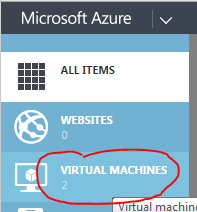
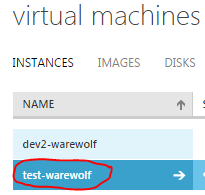
- Click on your virtual machines NAME
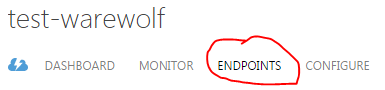
- Click ENDPOINTS
- At the bottom of the page, click ADD

- Leave ADD A STAND-ALONE ENDPOINT selected and click the arrow
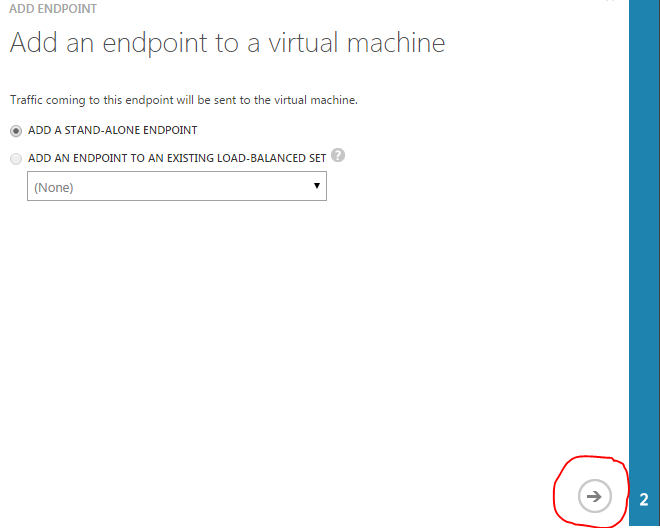
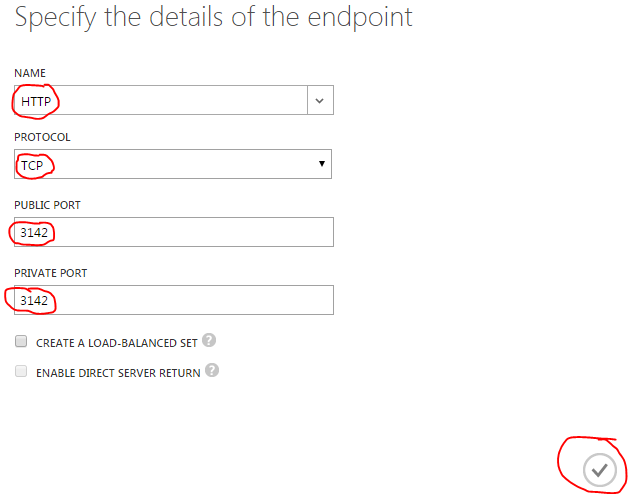
- Select HTTP, TCP, for PUBLIC PORT type 3142 and for PRIVATE PORT type 3142 then click the tick. Basically the page should look like this
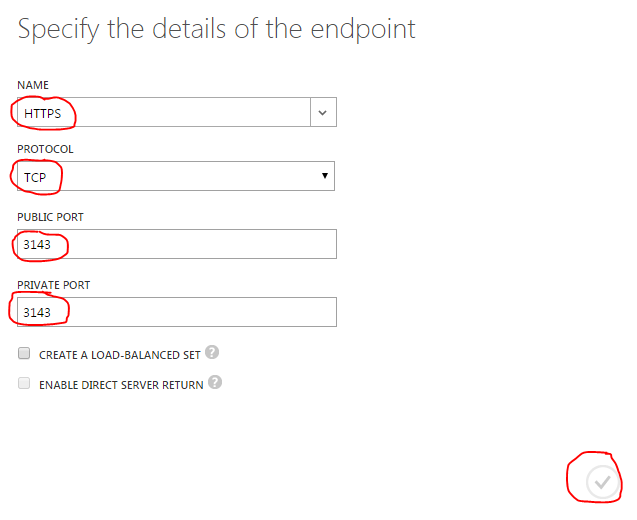
- Repeat the steps for HTTPS and ports 3143
- You can now remotely connect to your Warewolf server with the correct credentials and items marked Public reachable from anywhere.
Сервис поддержки клиентов работает на платформе UserEcho