Resharper and code quality
Warewolf code quality is maintained using Resharper.
To analyse your contribution for consistency with the existing code you must have Resharper downloaded and installed and have the following two Resharper plugins installed:
To install the required Resharper Plugins:
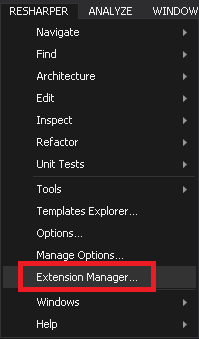
- Click the Resharper menu

- Select Extension Manager...from the sub menu.
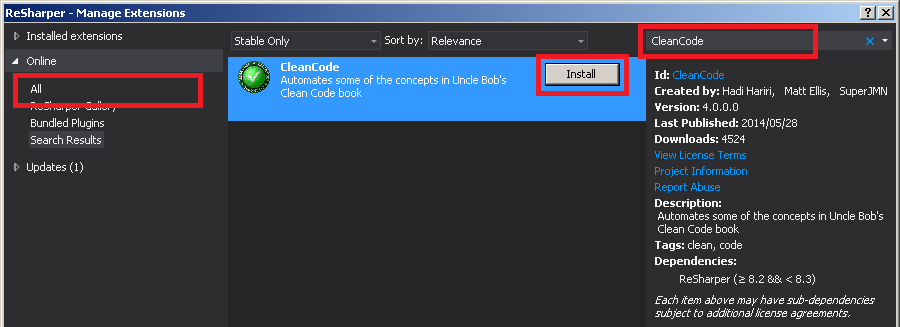
- Search for CleanCode from Online/All. And install it.
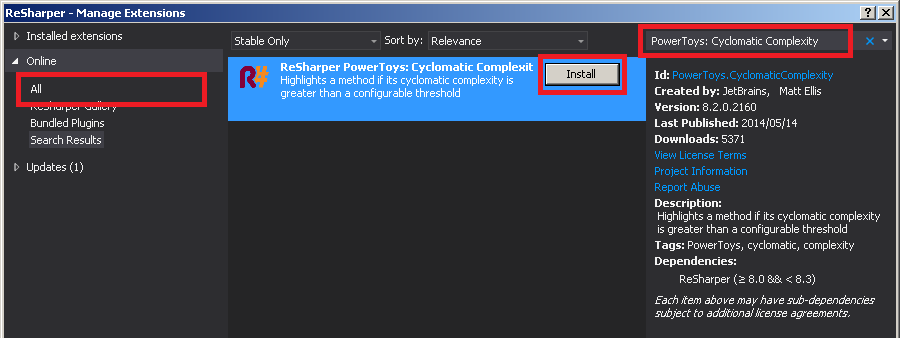
- Repeat step 3 for PowerToys: Cyclomatic Complexity.
To apply the Warewolf Resharper settings to Visual Studio:
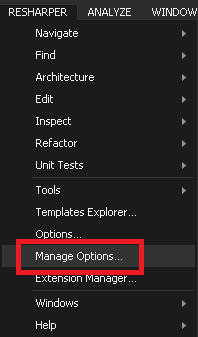
- Click the Resharper menu

- Select Manage Options...from the sub menu.
- Select a Settings Layer. Be vary careful not to select a layer where you already have Resharper settings or templates you that you want to keep. See Configuring Settings Layers. If you don't mind overriding existing settings then click Reset All Settings and select the This Computer layer.
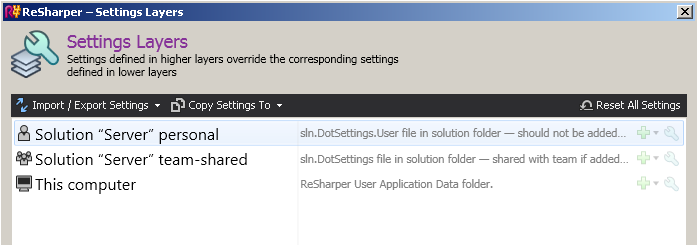
- Select Import from File... from the Import / Export Settings sub menu.
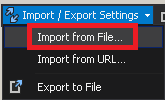
- If you have downloaded the Warewolf git repository you will already have the file "Resharper.dotSettings" in the root of the Warewolf git repository. Otherwise first download a local copy of the repository to get the Resharper settings you need.
Important concepts to remember with Resharper:
- Just because your contribution is clean according to Resharper doesn't mean that you have not introduced any new code quality concerns, you should also use Resharper to check the other parts of Warewolf that you've referenced and make sure you are using them correctly.
- Resharper settings layers are cumulative in nature. See: Resulting Settings
Customer support service by UserEcho